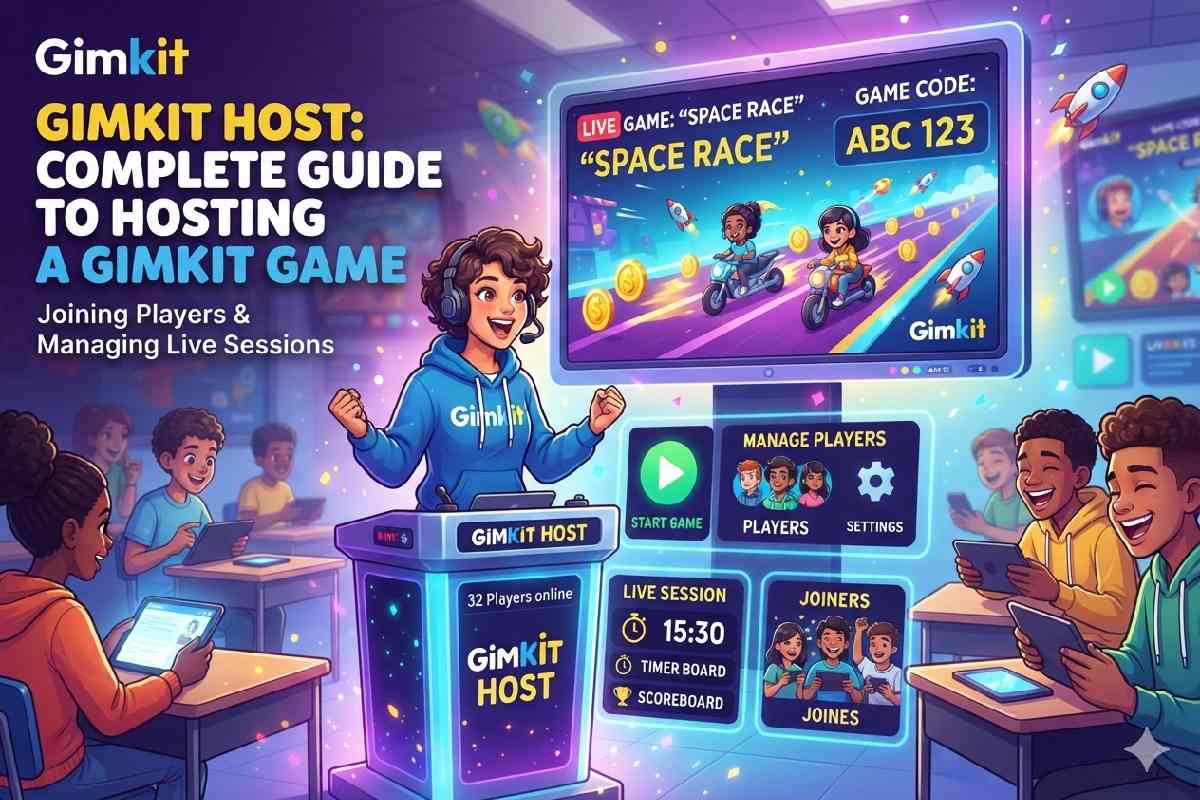

Modern learning has taken on new and interesting interactive forms. Rather than sticking to tried-and-true practices like quizzes and worksheets, educators are taking advantage of game-based learning platforms to help engage students, assess their understanding, and reinforce classroom revision with more creative activities.
Gimkit is one such platform, and its Gimkit Host feature makes it possible for educators to start and manage live games, select sets of question-and-answer pairs, choose modes of operation, configure settings, and invite players to join in.
Whether you are an interested teacher preparing a class activity, a student wanting to understand how the platform works, or just a curious outsider, finding out more about how Gimkit Host is a valuable tool.
Gimkit adds gameplay to test a participant’s knowledge with questions that require careful thought. Educators can use the platform to create revision sessions, build vocabulary activities, test student’s subjects understanding, and much more.
This guide explains what Gimkit Host means, the process of hosting a game, how students can join, the settings that matter, and how to troubleshoot common problems.
What Is Gimkit Host?
Gimkit Host is the procedure of setting up and managing a live game session on the Gimkit education platform.
A host will typically be an educator, and their responsibilities are to choose one of the platforms’ pre-set kits or build a custom question kit, decide on and configure a game mode, set additional settings, share joining information with the players, and commence the session.
The players are typically students, and they will be prompted to enter the joining information provided by the host and answer questions in the selected game mode.
While a traditional quiz typically ends after each round, Gimkit incorporates gameplay elements depending on the selected game mode.
Depending on the chosen game mode, players may earn in-game currency and rewards, buy upgrades, work together, and so much more.
The overall idea is to combine learning with an element of play.
Students can join the game session and play with friends, and at the same time, review key terms and concepts in the comfort of a familiar and entertaining setting.
You can find more information in the Gimkit Help Center.
Why Is Gimkit Host Popular With Teachers?
Teachers have the difficult task of keeping students entertained while educating them.
Gimkit makes it possible to introduce quizzes and other question-based activities with elements of play.
Following are some of the reasons why educators choose Gimbit Host to set up and manage a live game session.
-
Interactive Learning Experience
Students can sometimes find revision exercises boring.
Using a game-based learning platform like Gimkit is a great way to introduce interactivity and encourage students to answer more questions.
This can prove to be an effective revision method, the game mode permitting.
-
Flexible Question Sets
Teachers can create question sets, also known as kits, and share them with students to test their understanding of a topic.
For instance, a science teacher can come up with a kit that contains the questions they want students to answer concerning the solar system.
Likewise, an English teacher can design a kit that tests their students’ vocabulary and/or grammar skills.
The choice of questions to include in a kit should be informed by the lesson’s objectives.
-
Different Game Modes
Gimkit offers a variety of game modes.
Depending on what’s available, a teacher can base the game on rivalry, cooperation, and so much more.
This flexibility is vital and can help the educator get the most out of the platform by choosing the best settings according to the lesson objectives and student capabilities.
-
Convenient Live Participation
Students can join a live session by entering the game code, scanning a QR code, or using a joining link the host can share with them.
This removes barriers that would prevent a class of students from participating in a game session simultaneously.
-
Opportunities for Revision
A well-designed Gimkit session can assist a teacher with lesson revision ahead of examinations and assignments.
Asking students to repeatedly answer similar questions can help them identify weak areas that require more attention.
However, a game cannot be a substitute for effective teaching.
How to Host a Gimkit Game Step by Step
Hosting a Gimkit game is relatively easy, and most of the essential steps remain the same, regardless of the account type.
While the actual buttons may change as the platform grows and changes, the following procedure should suffice for most cases.
Step 1: Open the Official Gimkit Website
Visit Gimkit.
Sign in to your educator account.
As the Gimkit account documentation states, it is necessary to have an account to create a kit and host a game.
If you don’t have an account, you’ll need to register and complete the verification process on the official site.
Step 2: Choose a Kit
Now that you are signed in, click on the question set you want to use.
A kit is a bank of questions and answers that will fuel the game.
You can either use an existing one or decide to build a custom one.
Before proceeding, make sure that the questions are easy to understand and suitable for your students.
Step 3: Click the Play Live Option
Click play live and choose the game mode.
You can explore the available options and decide on the best fit for your lesson objectives.
If you are new to hosting live sessions, you should spend some time familiarizing yourself with the features and deciding which effects to enable.
The game modes differ, and each has its own unique set of rules, objectives, and guidelines.
Step 4: Pick a Game Mode
Select the preferred game mode and continue.
For instance, a competitive format may be best suited for a short revision session, while a cooperative format may facilitate teamwork and class building.
Make sure to read the description before proceeding.
Not all modes are available at all times, and the options you see in your educator account are likely to be the only ones you can use.
Step 5: Configure Game Settings
The game options screen gives you access to all the additional settings you can tweak.
Depending on the selected game mode, you can decide on the game’s objective, set a time limit, connect the game to a class, enable a nickname generator, allow late joining, and much more.
Ask yourself the following questions before proceeding:
- How much time should students have?
- Should the students work individually or in teams?
- Should late joining be allowed?
- Is a nickname generator appropriate?
- What goal or result should dictate the end of the game?
All of these considerations can help you set up a game that is organized and suitable for the lesson’s educational objectives.
Step 6: Share the Gimkit Join Code
Proceed to the lobby, and your hosting screen will display the joining information.
Students can typically join using one of the following three methods:
- Game code: They can enter the code on the official joining page
- QR code: They can scan the code displayed by the host
- Join link: The host can share a direct link to the session.
To ensure smooth joining, you should display the information in a place where all students can see it.
Step 7: Check the Lobby
Give students some time to join the lobby before commencing with the game.
You should also make sure that joining is possible and that students can see the participant list.
If your game mode permits, make sure to enable the nickname generator.
Finally, make sure to select the appropriate mode if the host can join as a player or spectator.
Step 8: Start the Game
When you feel that the class is ready, click to start the game.
The students can now participate per the selected game mode.
During the session, you can use the available host controls to view statistics, check the player list, and manage the game where applicable.
For more information, consult the official Gimkit live-game hosting guide.
How to Join a Gimkit Game as a Student
Students don’t typically host a game themselves.
Instead, they join an existing session created and managed by a teacher.
Here are the steps to follow:
- Ask the host for the current game code, QR code, or join link
- Visit the official Gimkit join page
- Enter the game code (if applicable)
- Enter an approved nickname or accept the one suggested/given by the host
- Wait in the lobby until the host starts the game
If the teacher uses Gimkit Classes and the student is signed in appropriately, the process should be much faster.
Remember that a code will only work for the session it was created for.
If an old code doesn’t work, ask the host to share the current joining information instead of looking for codes on external websites
Understanding Gimkit Game Modes
Game modes dictate the format in which students will answer questions.
The choice of a game mode is typically informed by the lesson objectives, available options, and student capabilities.
Competitive Game Modes
Some game modes are designed to foster a spirit of competition among students.
While such a format is best avoided for lessons that require more thought, it can be a great way to encourage students to learn vocabulary or test their comprehension at the end of a lesson.
It’s important not to encourage unhealthy competition and/or disregard for students who struggle to grasp a concept.
Team-Based Activities
Some game modes reward teamwork, and they are best used when the teacher wants to encourage students to explain certain concepts to each other.
Always make sure to give teams a goal and encourage all members to contribute towards it.
Strategy-Based Gameplay
Some game modes go beyond answering questions and require players to use in-game mechanics to reach an objective.
These can be a great way to ensure that students participate fully in a session.
However, teachers would need to explain the rules to students unfamiliar with the format.
Choosing the Right Mode
Think about your lesson objectives and pick a game mode that will get you closest to achieving them.
A short vocabulary quiz will typically use a different format than an in-depth science discussion.
You can find more information about the available modes in Gimkit’s official hosting help resources.
Best Tips for Hosting a Successful Gimkit Session
A well-planned Gimkit session makes it possible to achieve a teacher’s educational objectives and entertain a group of students.
Always Prepare Questions in Advance
Gimkit gives you the option to create a custom question set.
Make sure to review the questions to ensure there are no repetitions, errors, or irrelevant/unsuitable questions.
It’s also advisable to use simple language because students may struggle to understand questions that are worded incorrectly or are otherwise unclear.
Explain the Rules
Make sure to explain how students can earn currency or points, how the objective works, and what they should do when they answer a question.
A brief introduction goes a long way in preventing confusion during the session.
Set a Suitable Time Limit
Make sure that the time limit serves a purpose.
While a short session is appropriate for a vocabulary quiz, a more involved lesson may require more time.
Don’t lengthen a session simply to give students more time if they are struggling.
Encourage Participation
Don’t forget to encourage participation in the game itself.
Ask students to explain difficult answers, discuss the most common errors, and identify the concepts they find challenging.
This can be an opportunity to identify problem areas and revisit them after the session.
Keep the Session Organized
Always check the lobby before commencing with the session.
Make sure to share the joining details and explain the rules clearly.
Also, make sure that students use appropriate nicknames and know what to do if someone arrives late and attempts to join.
Review Learning Outcomes
Make sure to spend some time going over the most challenging questions after a session.
Ask students to identify problem areas and go over them in detail during the following lesson.
The best learning sessions combine game play with a focused review of the most challenging concepts.
Common Gimbit Host Problems and How to Fix Them
Even the most well-planned sessions can have technical problems.
The following solutions apply to some of the most common issues.
Problem 1: The Gimkit Join Code Isn’t Working
Make sure that students have entered the code correctly and visited the official joining page.
If not, the issue is likely to be solved by double-checking the code or visiting gimkit.com/join instead.
If the code was entered correctly but doesn’t seem to work, ask the host to commence a new live game and share the joining details.
Problem 2: Students Can’t Join the Lobby
Make sure that the host has commenced the session and joined as the host.
If the session is open and students still can’t join, check the late joining settings.
The students should also confirm that there are no issues with the network and reload the joining page if necessary.
Problem 3: The Game Is Slow or Lagging
Make sure to close unnecessary tabs, limit bandwidth usage, and/or use a more stable connection if possible.
If the issue persists and several students have reported the same problem, the host should troubleshoot the classroom network.
Problem 4: A Student Has an Inappropriate Nickname
Use the available options, such as nickname settings or player-management controls.
A nickname generator is a great way to prevent this issue in supported modes.
Make sure to establish appropriate expectations for future sessions.
Problem 5: The Host Can’t Find the Game Settings
Return to the game setup procedure and review the available options for the selected mode.
Some options are only available for certain modes, so not every setting you see will always be available.
Consult the official help center if an option is unavailable or difficult to find.
Is Gimkit Host Free to Use?
Gimkit account access and the features it offers are free to use.
According to Gimkit’s account documentation, creating and maintaining a Gimkit account is free of charge, while Gimkit Pro is an optional extra for educator accounts.
Feature availability and plan limitations can change over time, so make sure to consult the official Gimkit website and Gimkit Help Center.
Students should always follow their teacher’s instructions about signing in or using session details to join a game.
Gimkit Host vs. Traditional Classroom Quizzes
Traditional quizzes can be a great way to test a student’s understanding of a topic.
However, they seldom offer the replayability and entertainment value of a game-based learning exercise.
Gimkit offers a unique blend that makes it possible to achieve educational objectives while keeping students interested and entertained.
Depending on the selected game mode, students can earn in-game currency, play against or with each other, and apply various in-game mechanics to reach objectives.
However, neither method is inherently better than the other, and teachers are encouraged to consider their objectives.
A traditional quiz may be best for assessing a student’s individual ability, while Gimkit can help with collaborative learning and more in-depth discussions.
Teachers should always consider the best way of achieving their objectives and use assessment results, classroom discussions, and student feedback to inform their decisions.
FAQ,s
-
What is Gimkit Host?
Gimkit Host is the procedure of setting up and managing a live educational game. The host picks a kit, decides on a game mode, customizes the settings, shares joining details with the players, and commences the session.
-
How do I host a Gimkit game?
Sign in to your educator account, pick a kit, click play live, select a mode, customize the settings, and continue to the lobby. Share the game code or join link with participants and select start game when they are all ready.
-
Where can students enter a Gimkit join code?
Students can visit gimkit.com/join and enter the current code provided by their host.
-
Can students host a Gimkit game?
Hosting requires an account with the necessary permissions and features. Gimkit’s official account documentation states that accounts are required for educators to create kits and host games.
-
Can I host Gimkit without creating my own questions?
You can pick an existing kit that suits your lesson instead of creating a question set from scratch. Review its contents before hosting to ensure it matches your learning objectives.
-
Can students join Gimkit using a QR code?
Yes. For supported live games, the host can display a QR code from the lobby. Students can scan it to access the session.
-
Why is my Gimkit host code not working?
The code may have been entered incorrectly or may no longer be valid. Check the code and request fresh joining information from the host.
-
Is Gimkit suitable for online classes?
Yes. A host can share a joining link or game code with remote participants.
-
Can teachers control a Gimkit game?
Yes. Hosts have access to controls for starting and managing sessions.
-
Does Gimkit replace traditional teaching?
No. Gimkit is best treated as a supplementary learning activity that reinforces concepts taught in the classroom.
Conclusion
Gimkit Host makes it possible to turn a prepared question set into an interactive learning activity.
By picking the right kit, choosing the best game mode, customizing the available settings, and sharing the joining details, educators can organize live sessions without an unnecessarily complicated setup.
The key to a useful session is not simply to start the game. Teachers should provide accurate questions, explain the rules, encourage participation, and review difficult concepts after the activity.
Students can join through a game code, QR code, or direct link, while hosts use the available controls to manage the experience. When technical issues arise, checking the joining details, network connection, and game settings can solve many common problems.
Whether you are learning how to host a Gimkit game for the first time or looking for ways to improve your classroom activities, a little preparation can make the experience more smooth and more educational.